Want a free process mapping tool without buying Visio or a BPM suite? That question shows up in a lot of real consulting workshops. It is the problem I set out to solve with Aruvi Process Map Studio.
In client work, process conversations still fail in familiar ways. The room agrees on a “happy path,” then later discovers that handoffs, decisions, and exceptions were never made visible. Someone opens a heavy diagramming product that only one person can edit. Someone else pastes boxes into PowerPoint. Someone else maintains a spreadsheet of steps that never matches the picture on the wall. Organizations do not always need enterprise process mining or a full BPM platform. Often they need a clear swimlane map (roles, steps, decisions) that can be built live, shared the same day, and improved without a license negotiation.
That is what the free Process Map Studio is for. It sits under Free Tools on the Aruvi Consultancy Services website, next to the free Aruvi Project Tool. No account required. No expensive software purchase required for the core mapping workflow. Open it in the browser, edit steps and lanes, and export a diagram you can put in a deck or email.
Security & privacy: maps stay in your browser on this device, not on Aruvi servers. Optional AI generate uses only the endpoint you configure; keys stay local. Full note on Free Tools.
Process maps are not decoration. They are how you make work discussable: who owns which band, where the decision sits, what happens on “No,” and where the process actually ends. A free tool that looks toy-like undercuts the conversation. A free tool that is only a static template never keeps up with the workshop.
So the bar I set was practical and consulting-grade:
You do not always need Visio, Lucid, or an enterprise BPM suite to get through a discovery session, a control walkthrough, or a future-state design workshop. Those products have their place. Many engagements simply do not need them on day one.
Like the Project Tool, Process Map Studio is also an example of how I build software now: AI-assisted delivery, short iteration loops, and a clear end goal.
I did not start with “build a diagramming platform.” I started with what a process consultant needs in a room:
From that goal, AI sped up layout, routing, export, and UI work. Domain experience shaped the product decisions: two-pane editor, Visio-style lane bars, standard decision exits, sample process on first open, expand-map mode for presentation. Then testing and refinement hardened what actually mattered for demos and workshops.
AI compresses the build cycle. Process and consulting judgment keeps the tool from becoming a generic tech demo. Iteration with a real facilitation goal is how you get something people can use in the next client session, not only something that looks clever on its own.
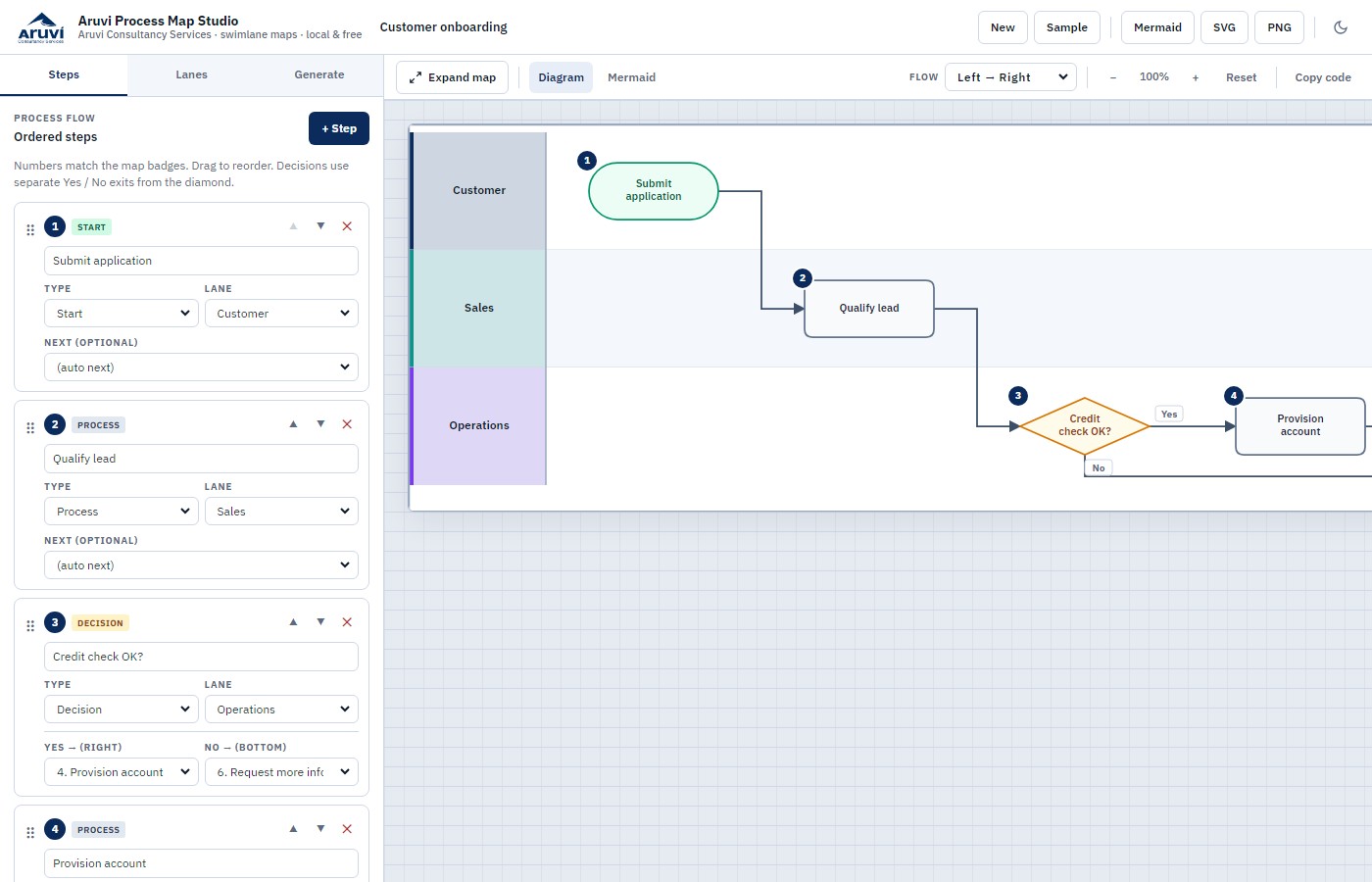
When you open the studio, a sample process loads so you can see the model right away: ordered steps, swimlanes, and a live diagram. Rename the process in the title field. Use New when you want a clean canvas, or Sample when you want to re-anchor the structure.
Figure 1: Two-pane workspace: process editor on the left, live swimlane map on the right.
On the Steps tab, you work with an ordered list that matches the map badges. That is intentional. In workshops, people point at “step 3” on the wall, and “step 3” on the list should mean the same thing.
A practical flow:
Decision diamonds follow common practice: Yes leaves the right tip; No leaves the bottom tip (in left-to-right flow). That small convention reduces messy overlapping connectors and matches how many people already read flowcharts.
On the Lanes tab, define the bands of work. Customer, Operations, Finance, Support, System, whatever the process actually uses. Top-to-bottom order matches the diagram. Color tints help stakeholders read ownership quickly.
This is often where the real consulting value shows up. A process that looked “fine” as a list can become uncomfortable (in a useful way) once handoffs between lanes are visible.
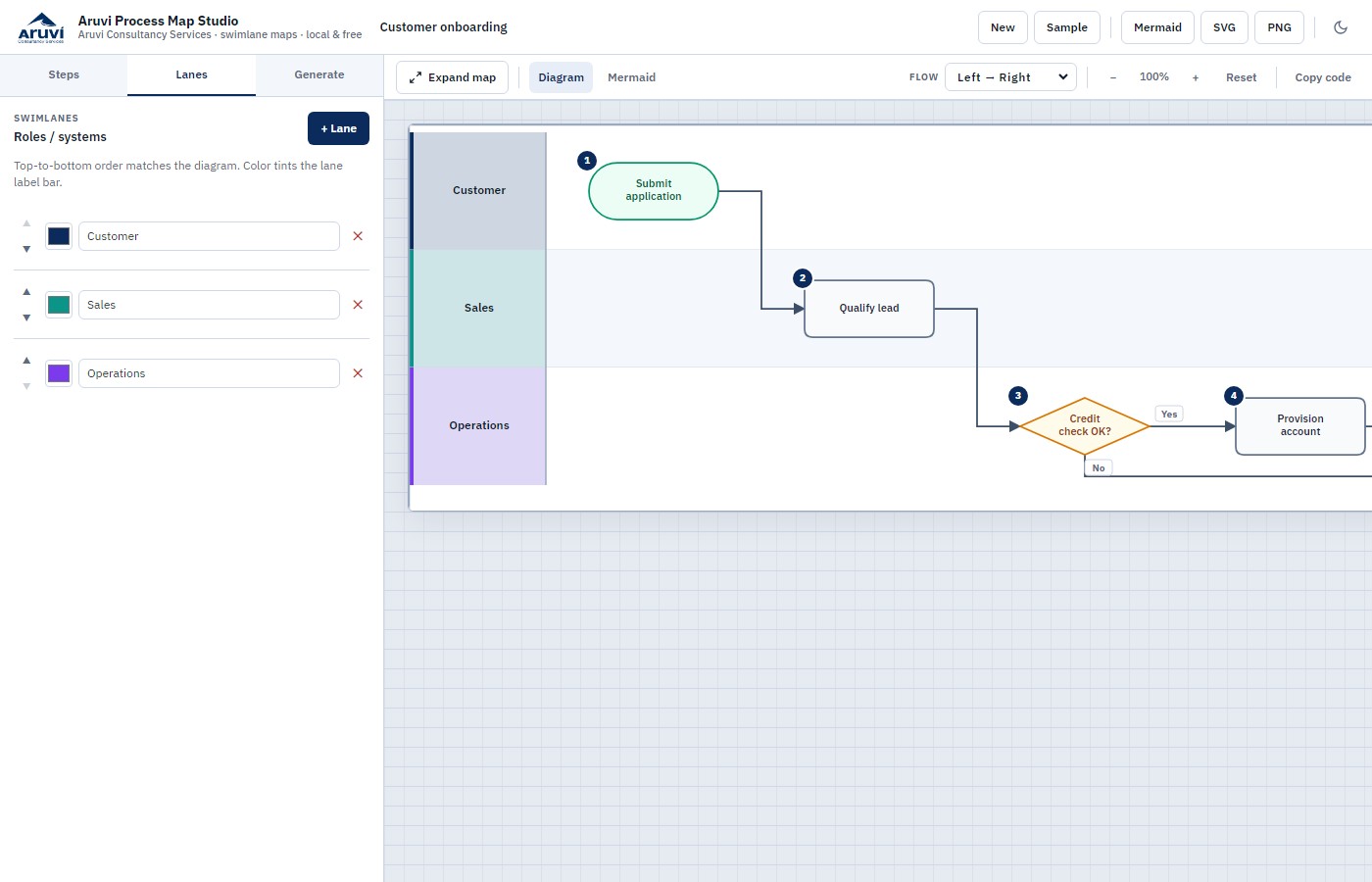
Figure 2: Lanes tab: roles and systems that form the swimlane bands.
Use Expand map (or Ctrl+\) when you want the diagram full-width for walkthroughs. Press Esc to restore the editor. Zoom when the process gets long.
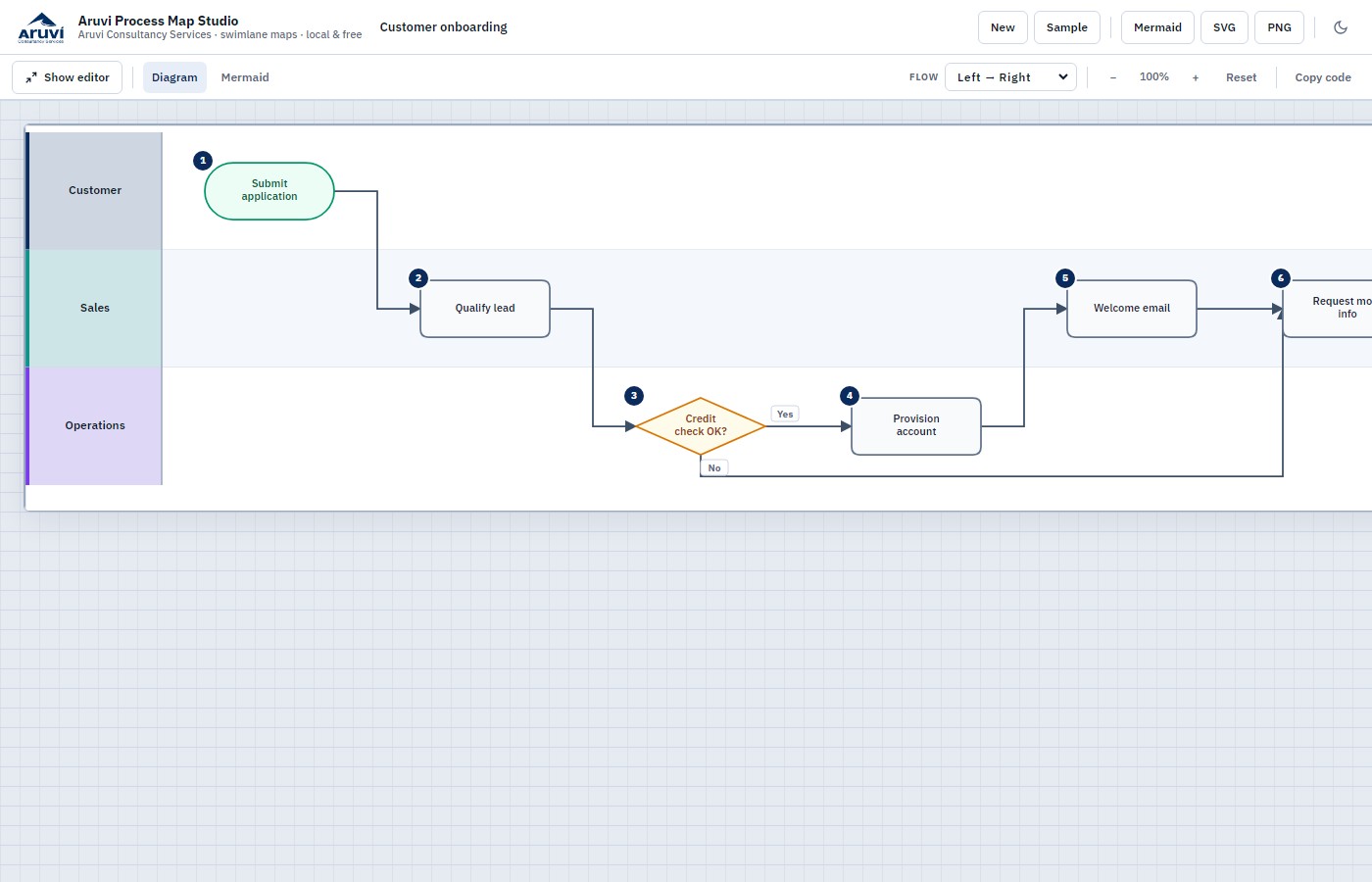
Figure 3: Map focus for facilitation: full diagram without fighting the editor chrome.
When you need an artifact, the header exports cover the common consulting cases:

Figure 4: Header exports: Mermaid, SVG, and PNG next to New and Sample.
The map also stays in browser local storage on that machine, so returning to the tool can continue the same process without retyping everything. For sharing across people, export is still the reliable path.
There is a Generate tab if you want to paste a plain-language process description and structure a first draft via Ollama or an OpenAI-compatible / xAI endpoint. Keys stay in the browser. That is optional acceleration, not a dependency.
Most serious process work still benefits from human facilitation. AI can draft structure. The consultant still owns clarity, controls, and exceptions.
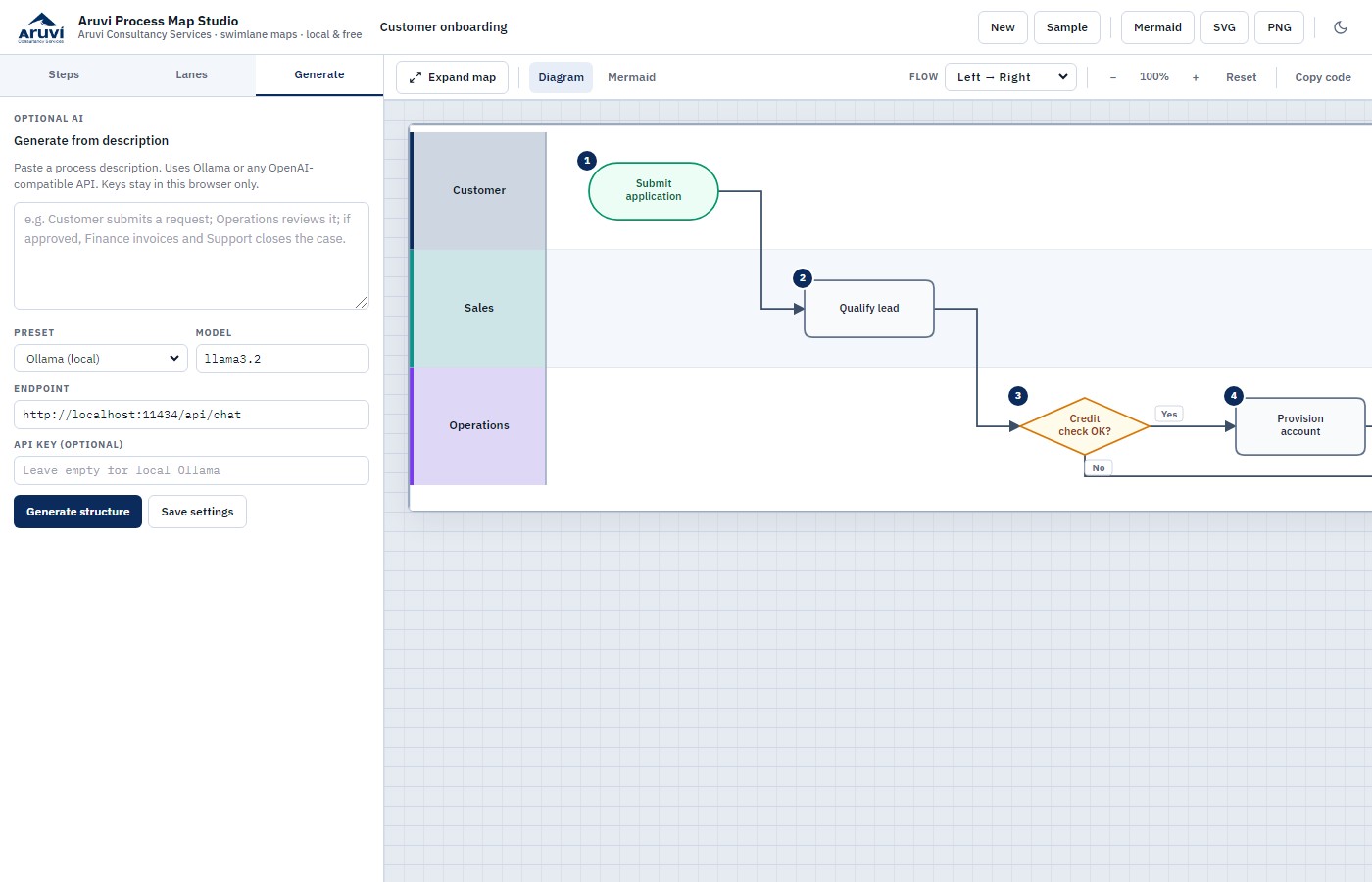
Figure 5: Optional generate from description; manual mapping remains the default path.
Process Map Studio is not a claim that every enterprise should abandon its BPM platform tomorrow. It is aimed at:
If you later need deep simulation, mining, or multi-repository governance, that is a different investment decision. Many discovery and design problems get solved well before that level of tooling is justified.
Process clarity and project delivery often reinforce each other. Once a process is visible, the work often becomes a plan: owners, milestones, risks, and sequence. Free Tools also includes the free Aruvi Project Tool for Agile and Waterfall planning. Map the work. Then plan the work. Keep both portable enough that the client still owns the artifacts.
Good process tools should make work discussable, not become the project. Aruvi Process Map Studio is there so you can build professional swimlane maps, correct them live, export what stakeholders need, and avoid renting expensive diagramming software for every engagement. It is free to use as a beta under Free Tools. It was built the same way I prefer to deliver client software: AI-accelerated, iterative, and anchored to a clear end goal.
If you want the step-by-step walkthrough, use the how-to guide. If you want to try it immediately, open the studio and start with the sample process.
The free studio is a starting point. Many organizations need process tools shaped around their language, controls, branding, and operating model. Others need the process work connected to delivery, data, and AI initiatives rather than left as a one-off workshop diagram.
I can tailor the tool for your specific needs or company, including:
If you want a free starting point, use the tool. If you want it shaped around your organization, or want help running the process work itself, reach out. Consulting value often shows up in the adaptation: not only providing a capability, but fitting it to how you work.
Reach out for a quick chat on how I can help at Suganth@AruviConsultancyServices.com
Or connect on LinkedIn.