Free Tools · Guide

How to use Aruvi Project Tool

Free tool from Aruvi Consultancy Services. Use Agile for day-to-day flow, or Waterfall for schedule-style consulting plans. Save files on your computer; export PDF or PNG for PowerPoint and email.

Open the tool ← Free Tools Process Map how-to RCA how-to

1 Start on the home screen

Choose Agile Tool or Traditional Waterfall Tool, or open a file you saved earlier.
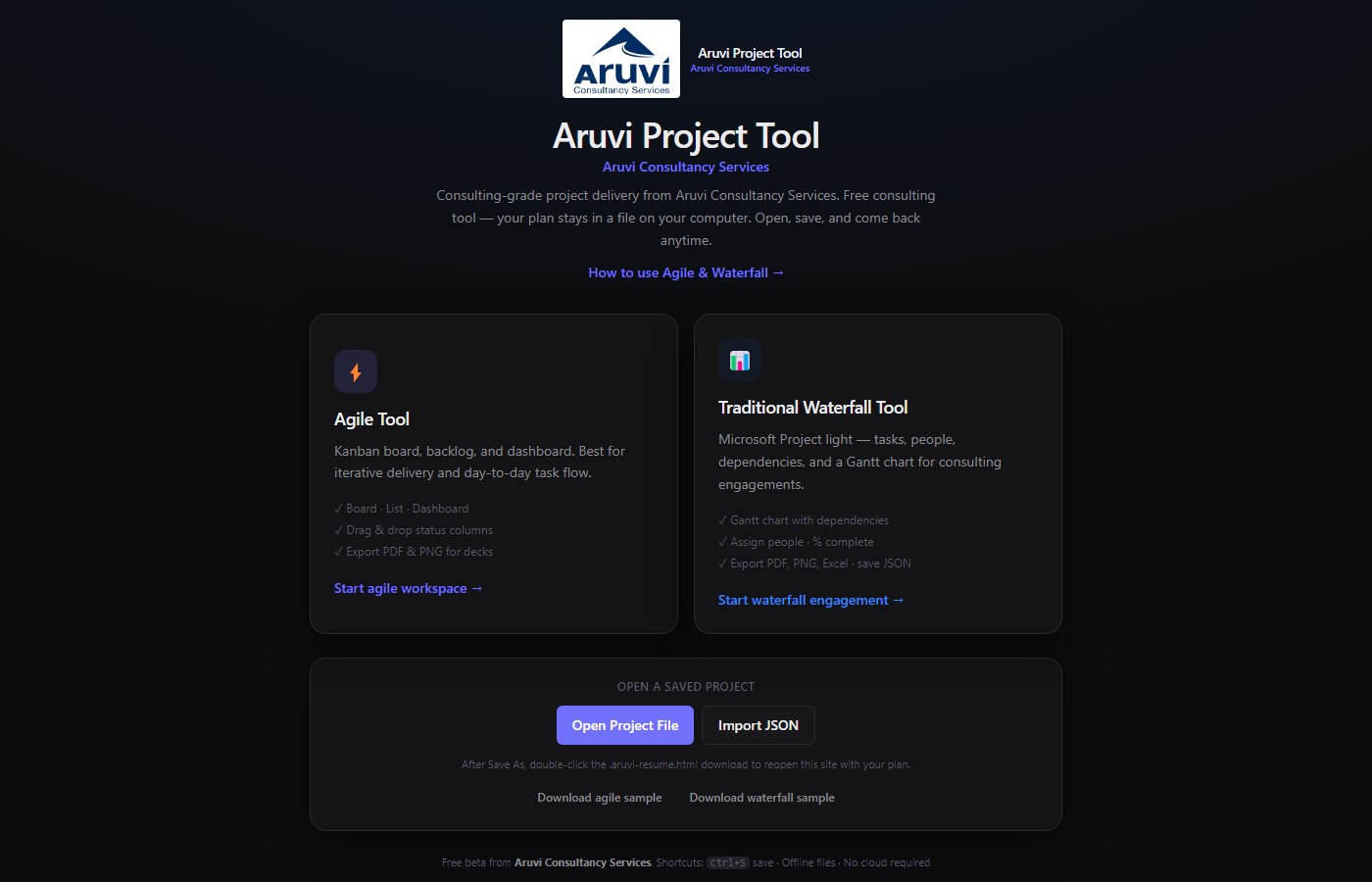
Welcome screen with Agile and Waterfall options

Figure 1 — Home screen: pick a mode or open / import a saved project.

2 Agile: board, list, dashboard

Create projects and tasks. Drag cards across columns (Backlog → To Do → In Progress → Blocked → Done). Switch views with Dashboard, Board, and List in the top bar. Use + Task or press N for a quick add. Ctrl+S saves.
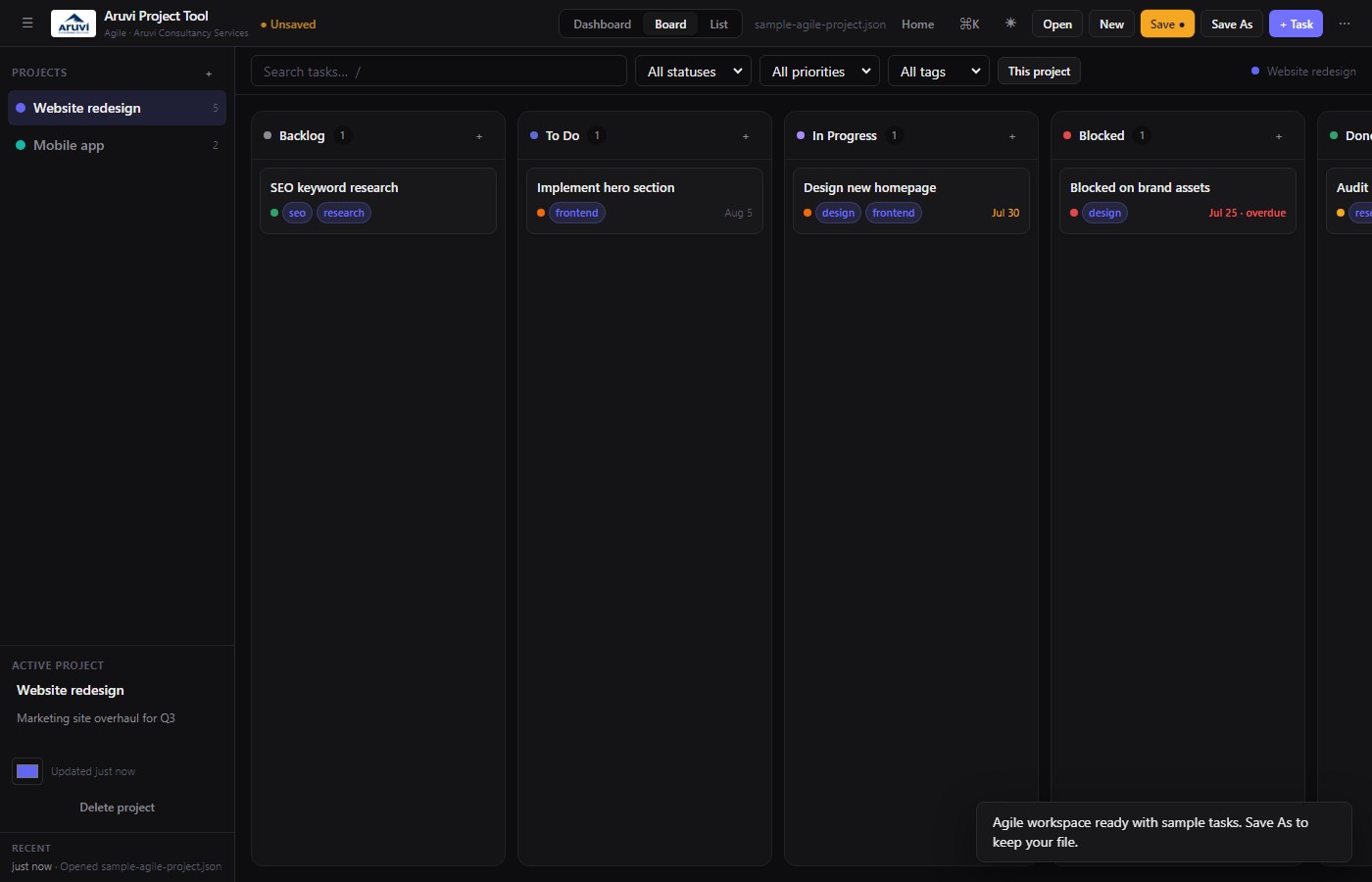
Agile kanban board with status columns

Figure 2 — Agile board: status columns, priorities, and Aruvi branding in the header.

  • Filter by status, priority, or tag in the toolbar under the top bar.
  • Click a card to edit description, due date, and tags.
  • Menu (⋯) → Export PDF or Export PNG for a plan snapshot in decks or email.

3 Waterfall: tasks, people, Gantt

Build a schedule with summary tasks, subtasks, milestones, assignees, and dependencies. Use the Gantt, Tasks, and People tabs. Indent / outdent for WBS structure.
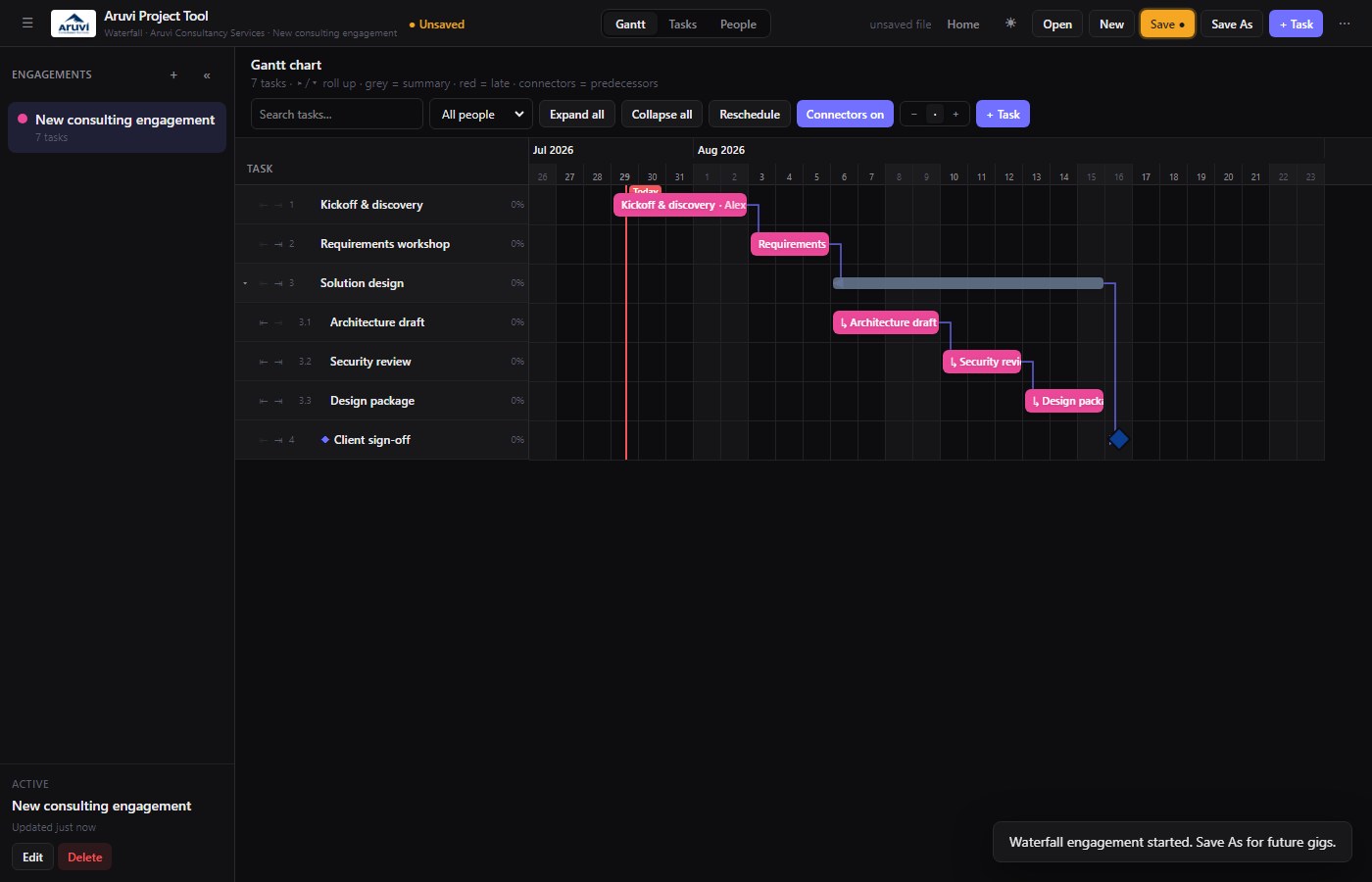
Waterfall Gantt chart view

Figure 3 — Waterfall Gantt: timeline bars, hierarchy, and progress.

  • Add people on the People view, then assign them on tasks.
  • Set % complete and dependencies for a consulting-grade plan.
  • Export PDF (print → Save as PDF), PNG, or Excel from the ⋯ menu.

4 Save, download, and return later

Your project lives in a JSON file on your computer (and a short resume link). That keeps data in your hands — not in a cloud account.
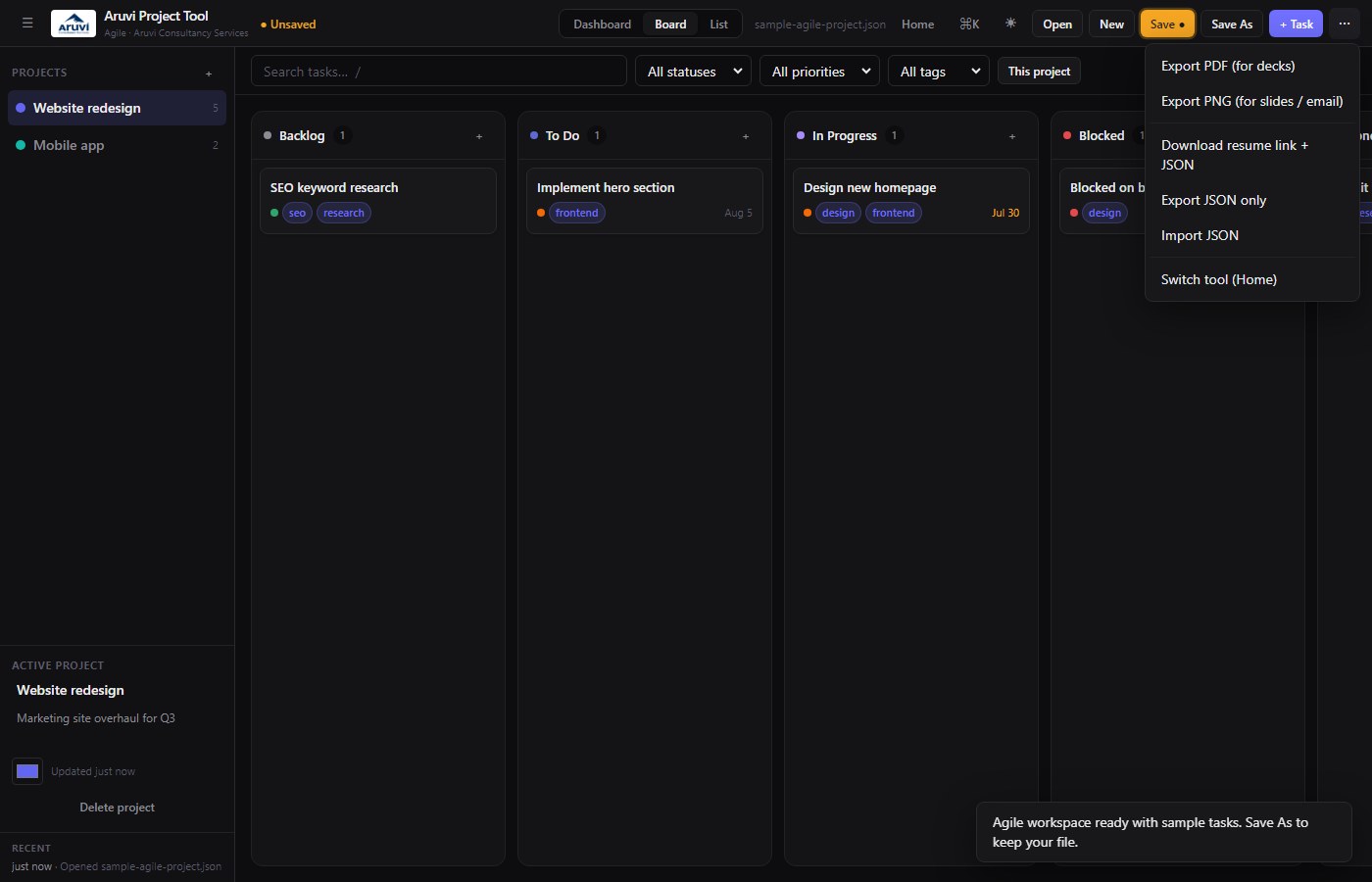
Export menu with PDF PNG and resume download

Figure 4 — Top bar ⋯ (more) menu: Export PDF, Export PNG, Download resume link + JSON.

  1. Save / Save As — writes your project file (Chrome or Edge recommended for the folder picker).
  2. Download resume link + JSON — downloads a .aruvi-resume.html file plus your JSON backup.
  3. Double-click the .html file — it opens the browser and returns you to this site with the project loaded.
  4. Or reopen the tool and use Open Project File / Import JSON.
  5. If you stay on the same computer and browser, use Continue where you left off on the home screen.

Tips for decks and email

  • PNG — drop straight into PowerPoint or Outlook.
  • PDF — use the browser print dialog → Save as PDF for a clean one-pager.
  • Exports include Aruvi Consultancy Services branding so clients see a professional source.

Security & privacy

This tool runs in your browser. Project data is not uploaded to Aruvi servers for storage — it stays on your device and in files you export. Treat JSON and .aruvi-resume.html files as confidential, the same way you would any client plan. See also Free Tools.

Open Aruvi Project Tool Questions? Contact us